# RideX Backend – Deployment Guide
This guide takes the backend from a fresh server to a live platform. Read [README.md](README.md) first for requirements, local installation and the **Going live checklist**.
A live RideX backend needs four things running:
1. A web server whose document root is `ridex_backend/public`.
2. PHP 8.4.1+ with the extensions listed in the README, plus MySQL 8+ or MariaDB 10.4+.
3. A cron entry for the scheduler (every minute).
4. A queue worker (Supervisor on a VPS, or the cron fallback on shared hosting).
## 1. Install on a VPS
```bash
cd /var/www
# upload or clone ridex_backend here, then:
cd ridex_backend
composer install --no-dev --optimize-autoloader # the PHP packages (vendor/)
npm ci && npm run build # the admin panel's CSS and JS (public/build/)
cp .env.example .env # then edit APP_URL, DB_*, TWILIO_*, FIREBASE_* …
php artisan key:generate
php artisan migrate --seed --force
php artisan storage:link
php artisan optimize
```
The package comes without `vendor/` and `public/build/`: the first two commands create them. Node.js 20.19+ (with npm) is only needed for the build. Without it on the server, run `npm ci && npm run build` on your computer and upload `public/build/`.
Permissions: the web server user (usually `www-data`) must be able to write to `storage/` and `bootstrap/cache/`.
```bash
sudo chown -R www-data:www-data storage bootstrap/cache
sudo chmod -R ug+rwX storage bootstrap/cache
```
Uploads: drivers send up to two photos per document (`RIDEX_UPLOAD_MAX_KB`, 5 MB each by default). Set PHP's `upload_max_filesize` to at least `8M` and `post_max_size` to at least `12M`.
## 2. Web server
### Apache
`public/.htaccess` is included. Enable `mod_rewrite`, point the virtual host's `DocumentRoot` at `ridex_backend/public` and allow the override:
```apache
ServerName api.example.com
DocumentRoot /var/www/ridex_backend/public
AllowOverride All
Require all granted
```
### Nginx
```nginx
server {
listen 80;
server_name api.example.com;
root /var/www/ridex_backend/public;
index index.php;
charset utf-8;
client_max_body_size 12M;
location / {
try_files $uri $uri/ /index.php?$query_string;
}
error_page 404 /index.php;
location ~ ^/index\.php(/|$) {
fastcgi_pass unix:/var/run/php/php8.4-fpm.sock;
fastcgi_param SCRIPT_FILENAME $realpath_root$fastcgi_script_name;
include fastcgi_params;
fastcgi_hide_header X-Powered-By;
}
location ~ /\.(?!well-known).* {
deny all;
}
}
```
Then add HTTPS (for example with Certbot) and set `APP_URL=https://api.example.com` and `SESSION_SECURE_COOKIE=true`. The apps, payment pages and trip-share links are all built from `APP_URL`.
**Behind a load balancer or CDN** (Cloudflare, AWS ELB, a reverse proxy), set `TRUSTED_PROXIES` to `*` or to the proxy's IPs / CIDR ranges. Otherwise every visitor appears to come from the proxy's IP, so the per-IP limits (for example 20 sign-in codes per IP per hour) apply to all users together, and https links can fail their signature check.
**App sign-in lifetime:** the apps' tokens expire after `API_TOKEN_EXPIRATION_DAYS` (90 by default, `0` = never). Users then sign in again, and expired tokens are pruned daily by the scheduler.
## 3. Shared hosting (cPanel)
1. In **Select PHP Version** (or **MultiPHP Manager**), choose PHP 8.4 and enable the required extensions.
2. On your computer (or in cPanel's **Terminal**), run `composer install --no-dev --optimize-autoloader` and `npm ci && npm run build` in `ridex_backend/`. The package comes without `vendor/` and `public/build/`; these commands create them.
3. Upload `ridex_backend/`, with its new `vendor/` and `public/build/` folders, **next to** `public_html`, not inside it, so `.env` and `storage/` are never reachable from the web.
4. Point the domain or subdomain's **Document Root** at `ridex_backend/public` (Domains → Manage). Use a subdomain such as `api.example.com` if the main domain's root can't be changed.
5. Create a MySQL database and user (MySQL Databases), and give the user all privileges on it.
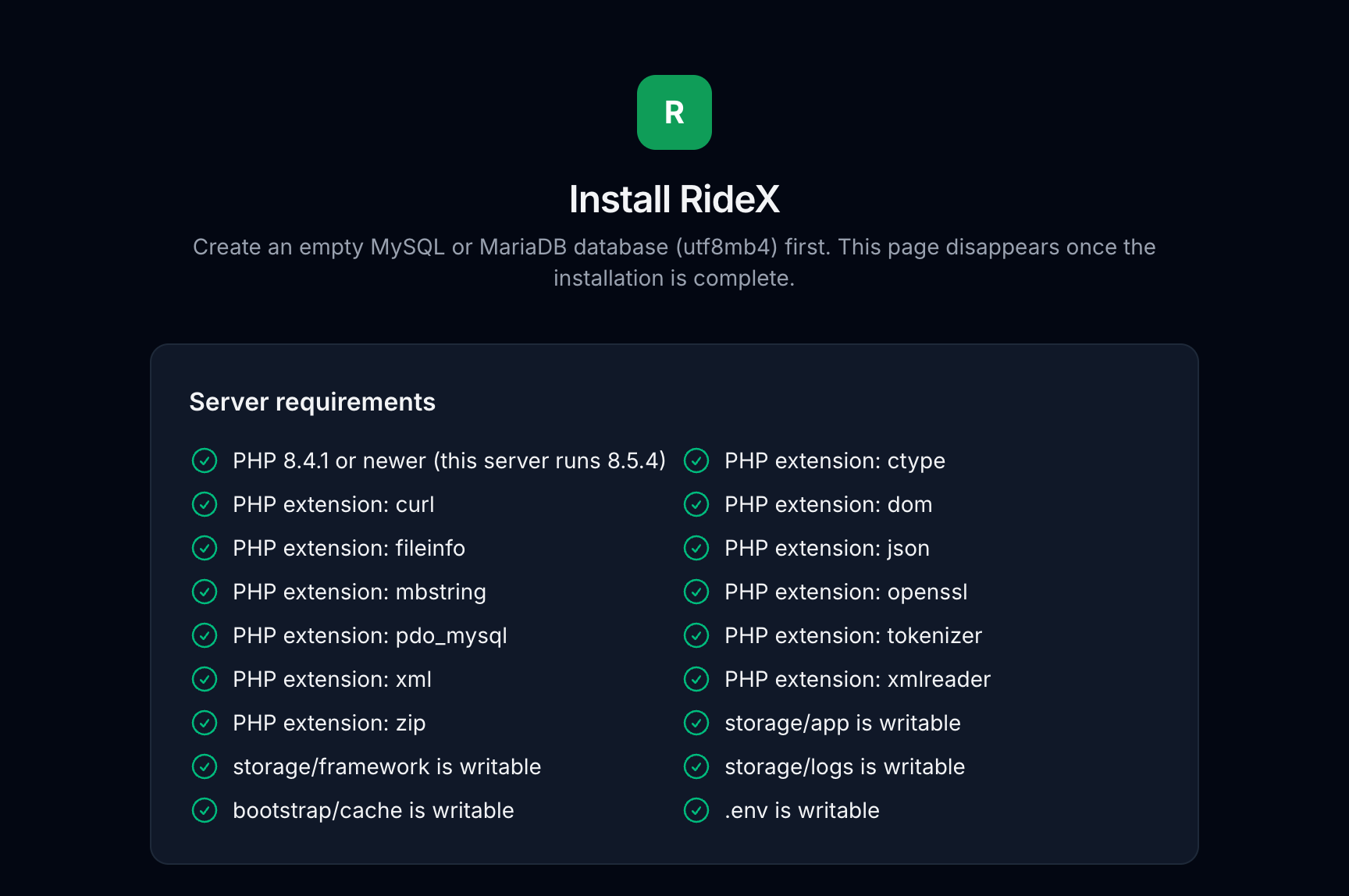
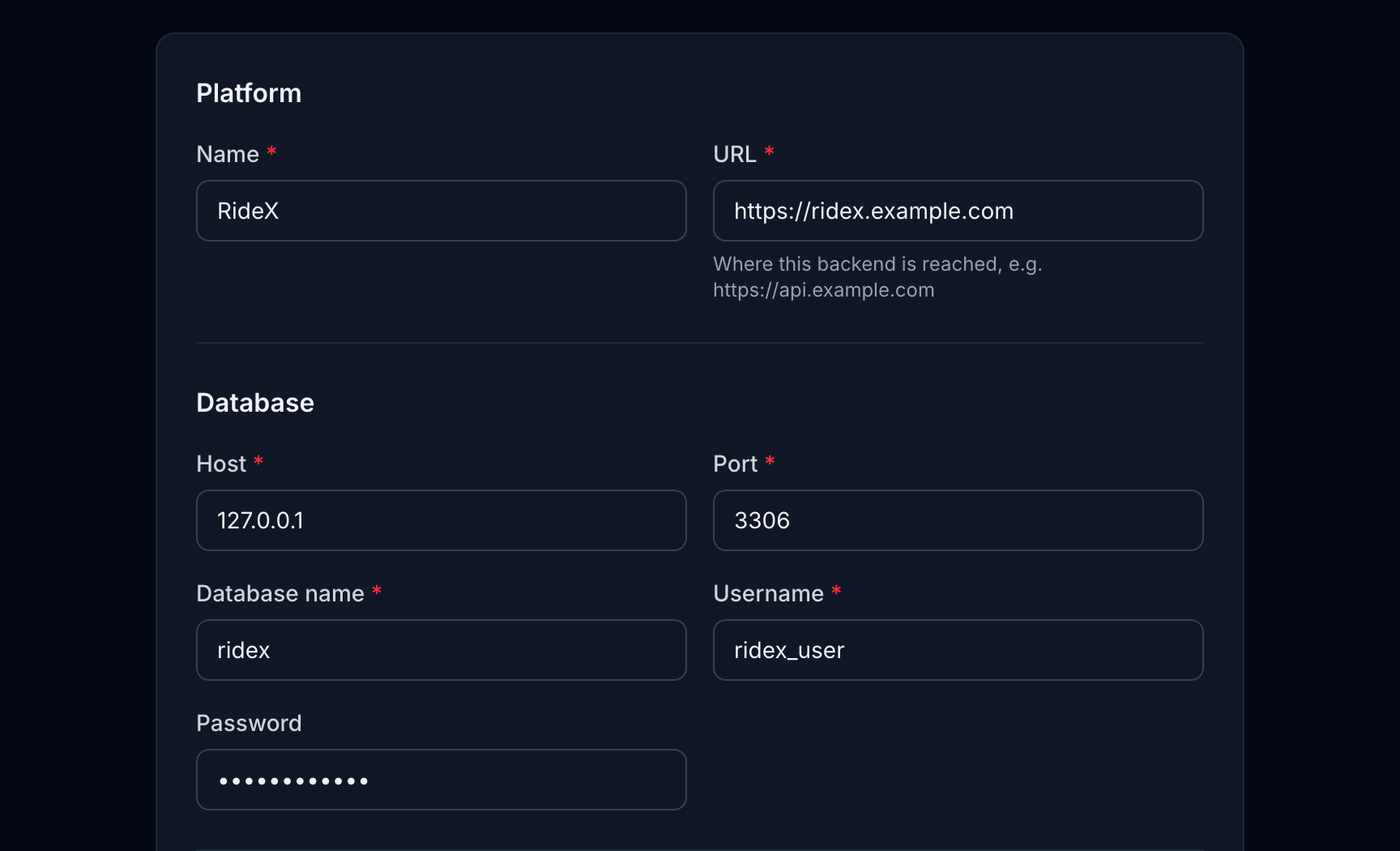
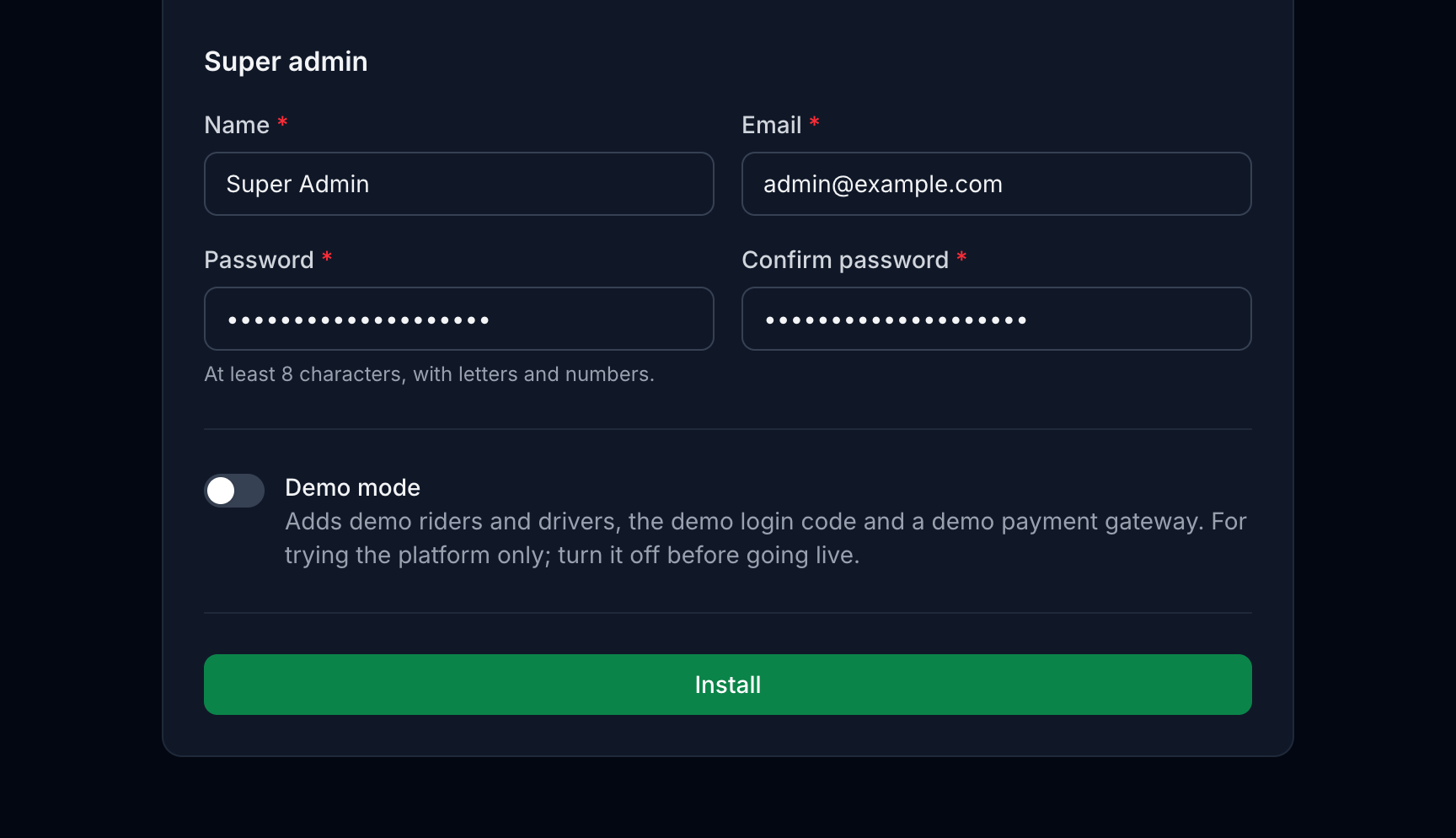
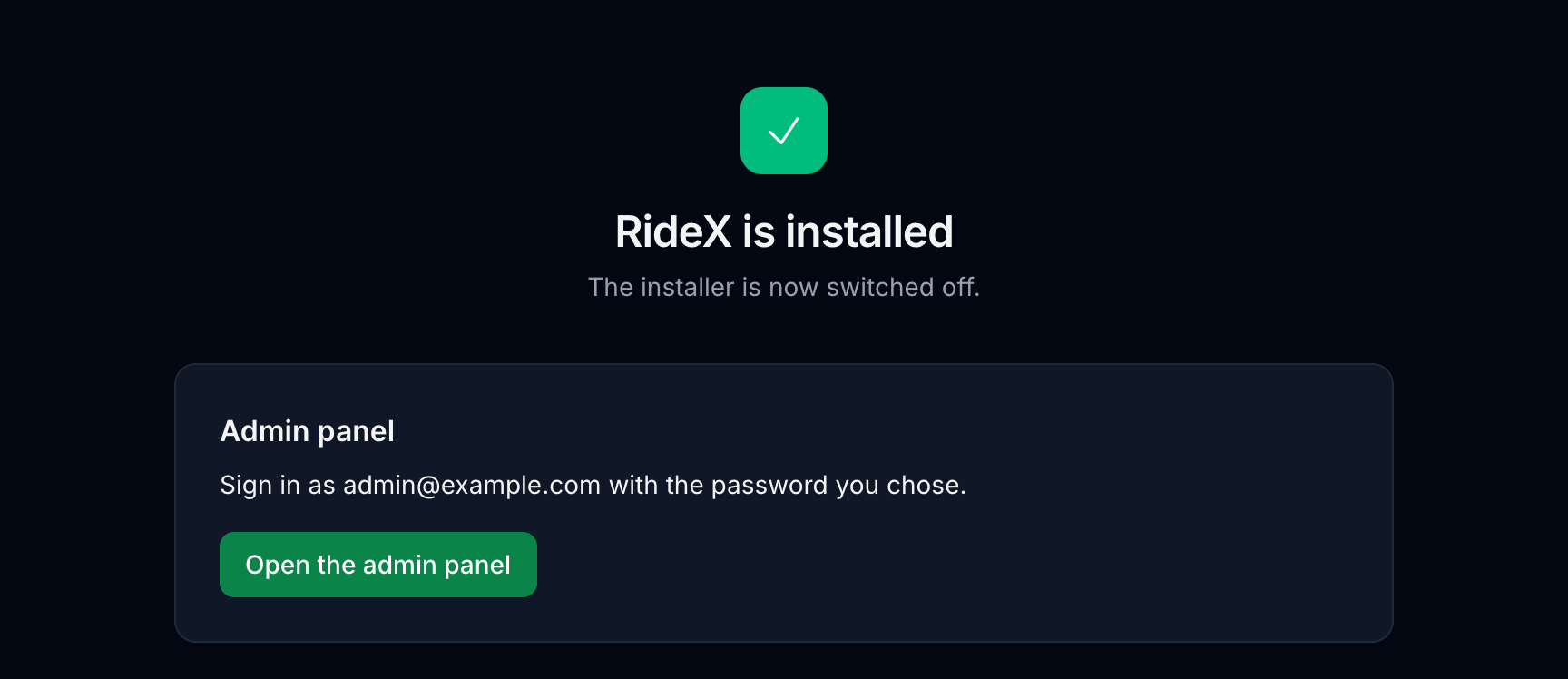
6. Open `https://your-domain/install`. The **web installer** checks the server, then asks for the platform name and URL, the database and the super admin. It migrates, seeds, creates `public/storage` and writes `.env`, then switches itself off.
- If it reports that `public/storage` couldn't be created (some hosts disable symlinks), ask your host to link `public/storage` to `storage/app/public`.
- With **Terminal** (or SSH) you can run the commands from section 1 instead. The Terminal PHP may differ from the web PHP. Use the 8.4 binary your host gives, for example `/opt/cpanel/ea-php84/root/usr/bin/php artisan migrate --seed --force`.
7. Add the cron entries from section 4 under **Cron Jobs**, using the PHP 8.4 binary.
The installer's screens, in order. Its last page also lists the cron job and queue worker for your server (section 4).
## 4. Scheduler and queue worker
**Scheduler** (every server):
```cron
* * * * * cd /var/www/ridex_backend && php artisan schedule:run >> /dev/null 2>&1
```
**Queue worker.** Dispatch offers, offer timeouts, search retries, push notifications, live ride updates, SMS and card charges all run on the queue. Without a worker, rides never reach drivers, and riders and drivers don't see each other's actions. Keep the queue order `dispatch,notifications,default`: ride pushes and live ride updates use the `notifications` queue, so driver locations and push campaigns on `default` never hold them up.
On a VPS, keep it running with Supervisor (`/etc/supervisor/conf.d/ridex-worker.conf`):
```ini
[program:ridex-worker]
command=php /var/www/ridex_backend/artisan queue:work --queue=dispatch,notifications,default --sleep=1 --max-time=3600
user=www-data
numprocs=1
autostart=true
autorestart=true
stopasgroup=true
killasgroup=true
stopwaitsecs=3600
redirect_stderr=true
stdout_logfile=/var/www/ridex_backend/storage/logs/worker.log
```
```bash
sudo supervisorctl reread && sudo supervisorctl update && sudo supervisorctl start ridex-worker:*
```
On shared hosting without Supervisor, add a second cron entry that drains the queue every minute:
```cron
* * * * * cd /home/USER/ridex_backend && php artisan queue:work --queue=dispatch,notifications,default --stop-when-empty --max-time=50 >> /dev/null 2>&1
```
This works, but queued work can wait up to a minute: offers expire late and dispatch feels slower. Use a VPS for a busy platform.
After every deployment, run `php artisan queue:restart` so the worker loads the new code.
## 5. Third-party services
**These are external providers.** Google Maps, Firebase, Twilio, the payment gateways and the other services below are run by other companies, not by RideX. You sign up with each one yourself and accept its terms, and you're responsible for any fees it charges for your usage, such as Maps requests, SMS messages or payment processing.
### Google Maps
RideX uses three keys. Create them in Google Cloud Console → APIs & Services → Credentials, and restrict each one.
| Key | Where it goes | Enable these APIs | Restrict it to |
|---|---|---|---|
| Server key | Admin → Maps, SMS & Sign-in, or `GOOGLE_MAPS_SERVER_KEY` in `.env` | Routes API, Places API (New), Geocoding API | Your server's IP address, and those three APIs |
| Android key | `android/secrets.properties` in each app | Maps SDK for Android | Android apps: package name + SHA-1 of your upload key **and** of Play's app signing key (Play Console → App integrity) |
| iOS key | `ios/Flutter/Secrets.xcconfig` in each app | Maps SDK for iOS | iOS apps: the bundle IDs |
The app keys can't be set in the admin panel: Google reads them only from the app builds, so they go in `secrets.properties` and `Secrets.xcconfig`, and a new key needs new builds.
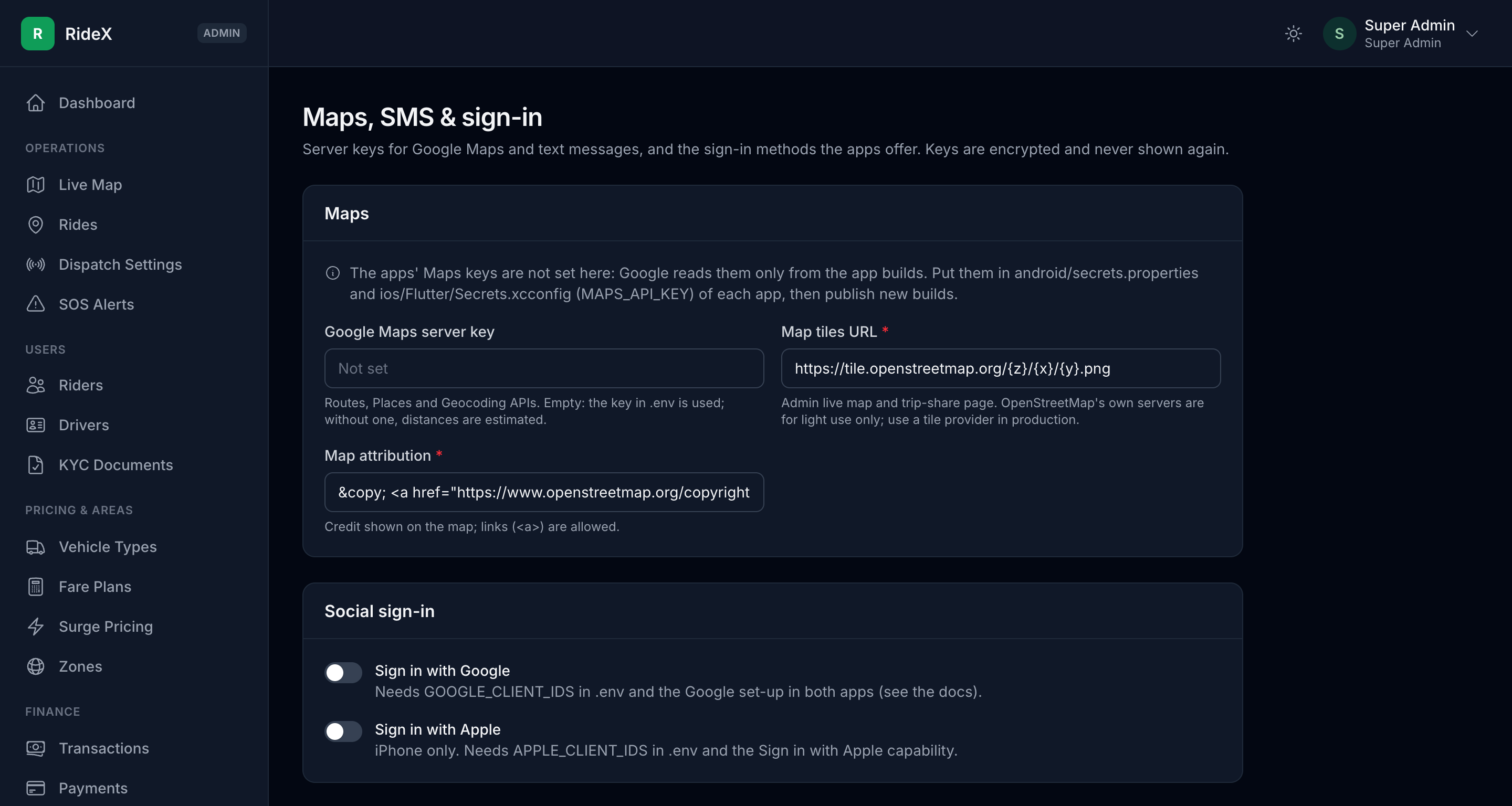
Enable **Places API (New)**, not the one called just "Places API": that is Google's legacy version, which RideX doesn't use and new projects can't enable.
Without a server key, or when a Routes API call fails, routes and fares use the straight-line estimate (`MAPS_FALLBACK_*`) and place search is empty. Reverse geocoding (the "Current location" address) only needs the Geocoding API.
### Map tiles (admin live map and trip-share page)
These pages use Leaflet with OpenStreetMap tiles by default. OpenStreetMap's own tile servers are for light use only, so a live platform should use a tile provider such as MapTiler, Stadia Maps or Thunderforest:
```dotenv
MAPS_TILE_URL=https://…/{z}/{x}/{y}.png?key=YOUR_KEY # the provider's raster XYZ URL
MAPS_TILE_ATTRIBUTION='© Provider © OpenStreetMap contributors'
```
Keep the attribution your provider requires. Run `php artisan optimize` after changing `.env`.
### Firebase (push notifications and live tracking)
Firebase is optional: the apps also build and run without it. They then poll for ride updates, and notifications stay in the in-app inbox. Push notifications and instant updates start once each app has its Firebase configuration files (see the [Mobile app setup guide](docs/src/mobile-setup.md)) and the server key from step 5 is uploaded.
1. Create a project in the [Firebase console](https://console.firebase.google.com).
2. Add an Android app and an iOS app for **each** RideX app, using your own package names and bundle IDs. Put the downloaded `google-services.json` in `android/app/` and `GoogleService-Info.plist` in `ios/Runner/` of that app.
3. **Build → Realtime Database → Create database.** Choose **Start in locked mode**. Copy its URL to `FIREBASE_DATABASE_URL` and the project ID to `FIREBASE_PROJECT_ID`.
4. **Build → Authentication → Get started.** Live tracking signs the apps in with custom tokens from the backend, so it needs no sign-in provider. Phone codes and Google sign-in (below) each need theirs.
5. **Project settings → Service accounts → Generate new private key.** Upload the JSON file in **Admin → Firebase Configuration** (Super Admin), then press **Deploy rules**. The rules (`firebase/database.rules.json`) let a signed-in rider or driver read only their own rides and ride offers, and let no app write: only the backend writes, with the server key. If **Realtime Database → Rules** ever shows `".read": true` or `".write": true`, press **Deploy rules** again, because open rules let anyone read every trip and change the data.
6. iOS push: **Project settings → Cloud Messaging → Apple app configuration**, upload an APNs authentication key (needs a paid Apple developer account), then add the Push Notifications capability in Xcode.
7. Optional: **App Check**, so Firebase accepts database and sign-in requests only from your own apps (see **Firebase App Check (optional)** below).
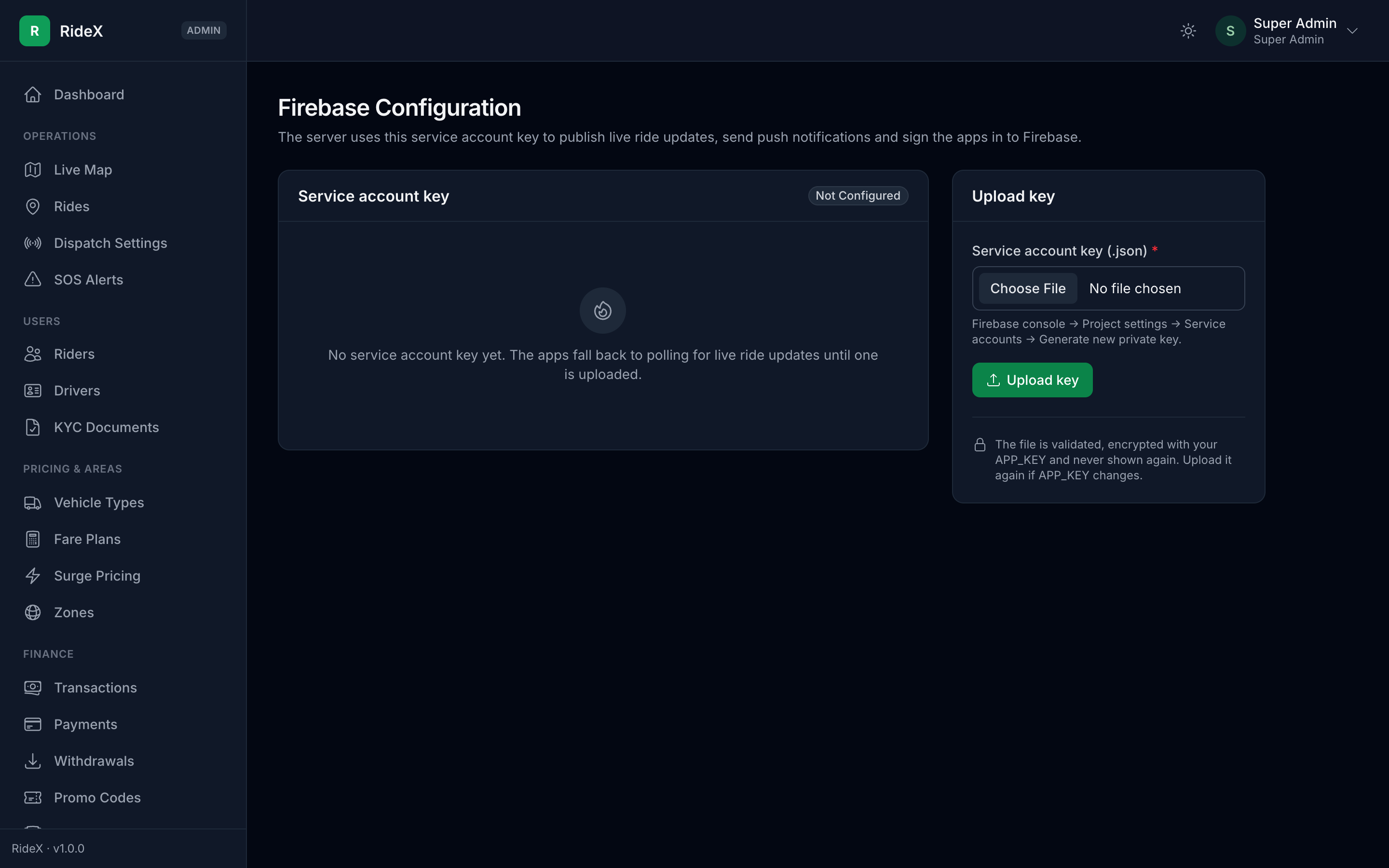
**Admin → Firebase Configuration → Connected apps** shows how many phones registered for push, which confirms the setup works end to end.
### Firebase App Check (optional)
App Check lets Firebase accept Realtime Database and sign-in requests only from your genuine apps. Both apps turn it on at start-up: release builds attest with **Play Integrity** on Android and **App Attest** on iOS (**DeviceCheck** before iOS 14), and debug builds use a **debug token**. There's nothing to set on the server, and nothing is blocked until you enforce it.
1. **Android:** in the Google Play Console, open each app, go to **Release → App integrity → Play Integrity API** and click **Link Cloud project** to link your Firebase project. In Firebase, add the SHA-256 fingerprint of Google Play's app signing key to each Android app (**Project settings → Your apps**), then register both apps under **Security → App Check → Apps** with **Play Integrity**.
2. **iOS** (paid Apple Developer team): in Xcode, add the **App Attest** capability to each app and set **App Attest Environment** to `production` in `Runner/Runner.entitlements`. Create a **DeviceCheck** key in your Apple Developer account (**Certificates, Identifiers & Profiles → Keys → +**), enter your Team ID in each iOS app's Firebase settings, then register both iOS apps with **App Attest** and with **DeviceCheck** (the `.p8` key and its Key ID).
3. **Debug builds:** add a debug token (for example from `uuidgen`) under **Security → App Check → Apps → ⋮ → Manage debug tokens**, and run the apps with `--dart-define=APP_CHECK_DEBUG_TOKEN=YOUR_DEBUG_TOKEN`. Never pass it to a release build.
4. **Enforce:** under **Security → App Check → APIs**, enforce **Realtime Database** and **Authentication** once the metrics show your store builds' requests as verified. It takes up to 15 minutes. Then book a test ride: the rider's trip screen must still update instantly, and a new offer must reach an online driver at once.
An app that App Check rejects still signs in to the backend and polls for updates. Only Firebase phone sign-in codes (see **Sign-in codes with Firebase Phone Auth** below) stop working once **Authentication** is enforced. The Xcode screens and more detail are in section 10.3 of the [Mobile app setup guide](docs/src/mobile-setup.md#103-app-check).
### SMS (Twilio)
Login codes (`OTP_PROVIDER=twilio`), SOS alerts and trip-sharing texts are sent through Twilio.
1. In the [Twilio Console](https://console.twilio.com), copy the **Account SID** and **Auth Token**.
2. Buy a phone number with SMS capability (or use an approved sender ID) and set it as `TWILIO_FROM` in E.164 format, for example `+15551234567`.
3. Set `TWILIO_SID`, `TWILIO_AUTH_TOKEN` and `TWILIO_FROM` in `.env`, then run `php artisan optimize`.
Trial accounts only deliver to verified numbers. Some countries require sender registration (for example A2P 10DLC for US numbers) before texts are delivered.
Without Twilio, a live server (`APP_ENV=production`) sends no SOS or trip-sharing texts: the SOS screen then tells the user only the safety team was alerted, and nothing about the text is written to the log. Outside production, texts are written to `storage/logs/laravel.log` for testing.
### Sign-in codes with Firebase Phone Auth (optional)
Instead of your Twilio account, Firebase can text the sign-in codes. The apps then send the backend a Firebase ID token that proves the number, so both apps need their Firebase files (see Firebase above). Firebase charges per text in most countries, so check its pricing first.
1. Firebase console → **Authentication → Sign-in method → Phone → Enable.**
2. **Android:** add the SHA-1 and SHA-256 fingerprints of your debug key, upload key and Play's app signing key (Play Console → App integrity) to each Android app (Project settings → Your apps), then download `google-services.json` again.
3. **iOS:** Firebase checks the app with a silent push, which needs the APNs key from the Firebase section. Without it, Firebase shows a reCAPTCHA page that returns to the app through a URL scheme. In `ios/Flutter/Secrets.xcconfig` of each app, set `FIREBASE_ENCODED_APP_ID` to the iOS app's **Encoded App ID** (Project settings → Your apps).
4. In **Admin → Maps, SMS & Sign-in**, set **Send sign-in codes with** to *Firebase Phone Auth*, or set `OTP_PROVIDER=firebase` before installing.
5. For testing and App Store review, add fictional numbers with fixed codes under **Phone numbers for testing** on the same Firebase page. The demo accounts need this too.
SOS alerts and trip-sharing texts still go through Twilio.
### Sign in with Google and Apple
Both are optional and switched off by default. The apps show a button as soon as it is switched on in **Admin → Maps, SMS & Sign-in**, so finish the set-up first. After a Google or Apple sign-up, the app asks for a phone number and verifies it with a code.
**Google** (uses the Firebase project from above):
1. Firebase console → **Authentication → Sign-in method → Google → Enable.** This creates the OAuth clients.
2. **Android:** add the SHA-1 fingerprints of your debug key, upload key and Play's app signing key to each Android app (Project settings → Your apps), then download `google-services.json` again. The file must contain a web client (`"client_type": 3`); the app asks Google for an ID token for it.
3. **iOS:** download `GoogleService-Info.plist` again. In `ios/Flutter/Secrets.xcconfig` of each app, set `GOOGLE_IOS_CLIENT_ID` to its `CLIENT_ID` and `GOOGLE_REVERSED_CLIENT_ID` to its `REVERSED_CLIENT_ID`.
4. **Backend:** set `GOOGLE_CLIENT_IDS` to the web client ID and each app's iOS client ID, comma-separated (Google Cloud Console → APIs & Services → Credentials). Android sign-ins carry the web client ID, iOS sign-ins the app's own.
5. Switch on **Sign in with Google**.
**Apple** (iPhone only). Apple's App Review guideline 4.8 asks for Sign in with Apple, or a similar privacy-focused option, when an iOS app offers Google sign-in.
1. In your Apple developer account (a paid team), enable **Sign in with Apple** for each app ID. In Xcode, add the **Sign in with Apple** capability (Runner → Signing & Capabilities).
2. **Backend:** set `APPLE_CLIENT_IDS` to the apps' bundle IDs, comma-separated.
3. Switch on **Sign in with Apple**.
Run `php artisan optimize` after changing `.env`. The backend checks every Google and Apple token's signature, issuer, expiry and audience, so a token issued to another app is refused.
### Payment gateways
Enter keys in **Admin → Payment Configuration** (Super Admin). Values in `.env` are only the install-time defaults. Every gateway uses a hosted checkout page, and each card on that page shows its webhook URL:
```
{APP_URL}/api/v1/webhooks/payments/{stripe|razorpay|paypal|flutterwave}
```
Webhooks are optional, because the app also confirms a payment when the rider returns from the checkout page. They do catch payments whose rider closed the page early. Test with sandbox keys first, and check that the gateway supports your `RIDEX_CURRENCY`.
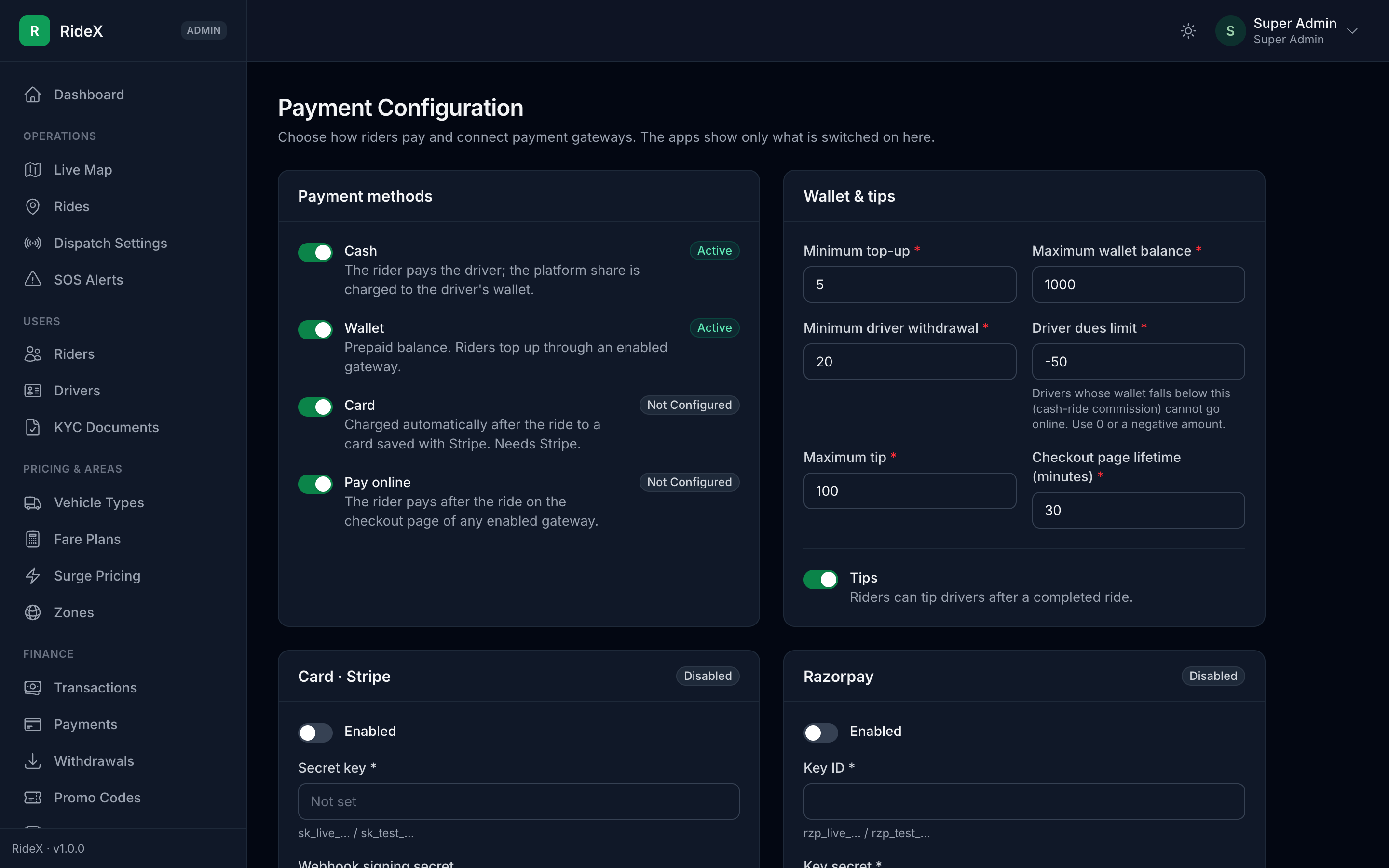
| Gateway | Keys (dashboard location) | Webhook events |
|---|---|---|
| **Stripe** | Publishable and secret key (Developers → API keys). Needed for card payments and saved cards. | `checkout.session.completed`, `checkout.session.async_payment_succeeded`, `checkout.session.async_payment_failed`, `checkout.session.expired`. Paste the endpoint's signing secret (`whsec_…`) as **Webhook signing secret**. |
| **Razorpay** | Key ID and key secret (Account & Settings → API Keys). Payments use Payment Links. | `payment_link.paid`, `payment_link.cancelled`, `payment_link.expired`. The secret you type when adding the webhook is the **Webhook secret**. |
| **PayPal** | Client ID and secret of a REST app (developer.paypal.com → Apps & Credentials). Sandbox and live apps have different credentials, so set **Mode** to match. | `CHECKOUT.ORDER.APPROVED`, `PAYMENT.CAPTURE.COMPLETED`, `PAYMENT.CAPTURE.DENIED`. Copy the webhook's **Webhook ID**; without it PayPal webhooks are ignored. |
| **Flutterwave** | Public and secret key (Settings → API Keys). | `charge.completed` (the webhook URL under Settings → Webhooks). The **Secret hash** you set there goes in **Webhook secret hash**. |
With `RIDEX_DEMO_MODE=true`, a **Demo payment** gateway appears so every flow can be tried without keys. Never leave it on in production.
### Email
Riders and drivers who have an email address get short emails for a completed trip (with the fare), payments, withdrawals, account status changes, driver application decisions and support replies. Each user can turn them off with **Emails** in the app's settings. Emails go out through the queue worker, in the user's language.
Set your SMTP server or mail service in `.env`, then run `php artisan optimize`:
```dotenv
MAIL_MAILER=smtp
MAIL_HOST=smtp.yourprovider.com
MAIL_PORT=587
MAIL_USERNAME=your-username
MAIL_PASSWORD=your-password
MAIL_FROM_ADDRESS="no-reply@yourdomain.com"
MAIL_FROM_NAME="Your platform name"
```
With the default `MAIL_MAILER=log`, emails are only written to `storage/logs/laravel.log`. Set up SPF and DKIM for the sending domain (your mail provider explains how), or the emails may land in spam.
### Certificate pinning (optional)
The apps always require HTTPS in release builds and trust only the phone's built-in certificate authorities. Pinning adds one more check: the app only talks to a server whose certificate carries one of the public keys you list, so even a wrongly issued certificate can't be used to read the traffic. The check runs before any data, including the sign-in token, is sent.
1. Get the pin of the key your server uses now:
```bash
openssl s_client -connect api.yourdomain.com:443 -servername api.yourdomain.com /dev/null | openssl x509 -pubkey -noout | openssl pkey -pubin -outform der | openssl dgst -sha256 -binary | openssl enc -base64
```
2. Create a spare key for emergencies and get its pin too. Keep the key offline; you only need it if the current key is lost or leaked:
```bash
openssl ecparam -name prime256v1 -genkey -noout -out backup-key.pem
openssl pkey -in backup-key.pem -pubout -outform der | openssl dgst -sha256 -binary | openssl enc -base64
```
3. Build both apps with the two pins: `--dart-define=API_CERT_PINS=,`.
**Keep the key when certificates renew**, or every installed app stops connecting until users update. With Let's Encrypt, renew with `certbot renew --reuse-key`. To change keys, first publish app versions that include the new pin, wait until most users have updated, and only then switch the server. When the pins don't match, the apps show the "no connection" message. Leave `API_CERT_PINS` out if you can't commit to this; HTTPS alone still protects the traffic.
Pinning covers the RideX API. Google Maps, Firebase and the payment pages opened in the app use the phone's normal HTTPS checks.
### Device security checks (optional)
Both apps can check the phone with [freeRASP](https://pub.dev/packages/freerasp) for root or jailbreak, hooking tools such as Frida, a modified or cloned app, an attached debugger and emulators. The apps never block anyone themselves: they send the findings with each request, and **Admin → Settings → Safety & support → Compromised phones** decides what happens:
- **Ignore** – findings are not stored.
- **Flag** (default) – findings show under **Device security** on the rider or driver profile, and each new finding is written to the activity log.
- **Restrict** – also blocks drivers on a rooted, jailbroken, hooked, modified, cloned or emulated phone from going online, accepting rides and requesting payouts. Developer mode, USB debugging, an unlocked bootloader, sideloading and mock-location apps are only flagged, because many honest users with custom ROMs have them.
Without any set-up, release builds run a basic check with [flutter_jailbreak_detection](https://pub.dev/packages/flutter_jailbreak_detection): root or jailbreak, plus developer options on Android and the iOS simulator. Its Android check (RootBeer) also counts ROMs signed with test keys as rooted, so some custom ROMs are reported as rooted too, and Restrict mode blocks those drivers. For the full checks and fewer false alarms, build the apps with the freeRASP values; the basic check then stays off:
```bash
flutter build appbundle --release --dart-define=API_BASE_URL=https://api.yourdomain.com \
--dart-define=RASP_WATCHER_EMAIL=security@yourdomain.com \
--dart-define=RASP_ANDROID_SIGNING_HASHES=
flutter build ipa --release --dart-define=API_BASE_URL=https://api.yourdomain.com \
--dart-define=RASP_WATCHER_EMAIL=security@yourdomain.com \
--dart-define=RASP_IOS_TEAM_ID=
```
- **Android signing hash:** with Play App Signing, use the **app signing key** certificate's SHA-256 from Play Console → App integrity, not your upload key. freeRASP accepts it in hex (`AB:CD:…`) or base64; separate several with commas.
- **Watcher email:** Talsec sends a weekly security report to this address.
- Debug builds skip the debugger, emulator and signature checks, and never run the basic check, so development is unaffected.
freeRASP is free under Talsec's fair-usage policy and sends anonymous check results to Talsec; mention this in your privacy policy. The findings are reported by the app, so a skilled attacker can hide them: treat them as a fraud signal, not proof.
## 6. Updating
```bash
php artisan down
# replace the code, keeping .env and storage/
composer install --no-dev --optimize-autoloader # the PHP packages (vendor/)
npm ci && npm run build # the admin panel's CSS and JS (public/build/)
php artisan migrate --force
php artisan optimize
php artisan queue:restart
php artisan up
```
`CHANGELOG.md` in the backend folder lists what changed in each version.
## 7. Troubleshooting
Start with `storage/logs/laravel.log`: it records every error with its cause.
| Symptom | Fix |
|---|---|
| "Composer detected issues in your platform: … PHP version >= 8.4.1" | The web or CLI PHP is older than 8.4.1. Switch both to 8.4+. |
| HTTP 500 right after install, or "…/storage/logs/laravel.log could not be opened … Permission denied" | Run `php artisan key:generate`, check the `DB_*` values and make `storage/` and `bootstrap/cache/` writable. |
| "SQLSTATE[HY000] [2002] Connection refused" or "[1045] Access denied for user" | The `DB_*` values in `.env` don't match your database. Check `DB_HOST` (on shared hosting usually `localhost`), `DB_PORT`, `DB_DATABASE`, `DB_USERNAME` and `DB_PASSWORD`, then run `php artisan optimize`. |
| Every page says "One more step before installing" | The Composer packages (`vendor/`) or the built admin assets (`public/build/`) are missing: a fresh download has neither. Run the commands the page lists in the backend folder, or on your computer and then upload the folder again. |
| "…/vendor/autoload.php: Failed to open stream" or `Class "…" not found` | `vendor/` is missing or incomplete. Run `composer install --no-dev --optimize-autoloader` in the backend folder, or run it on your computer and upload `vendor/` again. |
| Admin panel has no styling, or "Vite manifest not found" | The document root isn't `public/`, or `public/build/` is missing. Point the root at `public/`, and run `npm ci && npm run build` (on your computer if the server has no Node.js, then upload `public/build/`). |
| "419 Page Expired" when you sign in to the admin panel | The browser didn't keep the session cookie. With `SESSION_SECURE_COOKIE=true` the site must open over `https://`, and `APP_URL` and `SESSION_DOMAIN` (or `null`) must match the address you open. Run `php artisan optimize`, then reload the sign-in page. |
| Uploaded photos or documents return 404 | Run `php artisan storage:link`. |
| `.env` changes have no effect | Run `php artisan optimize` (it rebuilds the cached config). |
| Rides stay "Finding your driver" forever | The queue worker isn't running, or no online driver is within the search radius. Check `php artisan queue:work`, the cron entries and **Admin → Live Map**. |
| Chat and ride notifications arrive late or never, or one side doesn't see the other's action | The queue worker isn't running, or doesn't work the `notifications` queue. Run it with `--queue=dispatch,notifications,default`. |
| OTP never arrives / `sms_not_configured` | Set `TWILIO_*` (see SMS above). A Twilio trial only texts verified numbers. |
| "Too many requests" for many users at once (behind Cloudflare or a load balancer) | Set `TRUSTED_PROXIES` (see Web server), so each visitor is counted by their own IP. |
| A driver can't go online on an emulator | Emulators report mock GPS, which is blocked by default. For testing only, set `TRACKING_BLOCK_MOCK_LOCATIONS=false`. |
| The rider app's map shows the whole world and **Where to?** stays grey | The phone has no position yet: location is off, the signal is weak indoors, or a simulator has no location set (iOS Simulator: Features → Location; Android emulator: Extended controls → Location). After 20 seconds the app says the location isn't available; tap that line to try again. |
| A demo account's code doesn't fit the code boxes | The apps show one box per digit of `OTP_LENGTH`. Give `RIDEX_DEMO_OTP` that many digits. |
| Apps poll instead of updating live | Deploy the database rules (Admin → Firebase Configuration → Deploy rules) and check `FIREBASE_DATABASE_URL`. |
| No push notifications on iOS | Upload an APNs key in Firebase and add the Push Notifications capability in Xcode. |
| Live updates stop, or Firebase sign-in codes fail, after you enforce App Check | That build isn't verified. Debug builds need a registered debug token, release builds need Play Integrity or App Attest set up (Firebase App Check above). **Security → App Check → APIs** shows how many requests were refused. |
| App Check shows your release builds as unverified | Android: link the Play Integrity API, add the SHA-256 of Google Play's app signing key, and test with a build from Google Play (internal testing). iOS: add the App Attest capability with the `production` environment, and the DeviceCheck key and Team ID in Firebase. Enforce only once they show up as verified. |
| "Google sign-in failed" in the app | Android: the app's SHA-1 is missing in Firebase, or `google-services.json` has no web client. iOS: `GOOGLE_IOS_CLIENT_ID` / `GOOGLE_REVERSED_CLIENT_ID` aren't set. The device log (`flutter logs`) shows the exact cause after "RideX: social sign-in failed". A token refused with `invalid_token_audience` means `GOOGLE_CLIENT_IDS` or `APPLE_CLIENT_IDS` lacks that app's client ID. |
| Firebase sign-in codes never arrive | Check that the Phone provider is on, the Android SHA-1/SHA-256 fingerprints are added, and on iOS the APNs key or `FIREBASE_ENCODED_APP_ID` is set. |
| An app says it must be updated | Its version is below the minimum in Admin → Settings → App versions. Lower the minimum or publish the new build. |
| No emails arrive | Set `MAIL_*` (see Email above) and keep the queue worker running; users also need an email address and **Emails** on in the app. |
| Payment gateways or push stopped working after changing `APP_KEY` | Secrets saved in the admin panel are encrypted with `APP_KEY`. Enter the gateway keys again in Admin → Payment Configuration and upload the Firebase key again. |
| Place search shows no results, or fares look like straight-line estimates | Check `GOOGLE_MAPS_SERVER_KEY` and that **Places API (New)** and **Routes API** are enabled for it. The log names the failing call ("Google Places failed" / "Google Routes failed"). |